Quick answer
In the JPG vs PNG vs WebP choice, use JPEG for photos that must open anywhere, PNG for screenshots, text, and lossless transparency, and WebP for web pages, where it usually makes smaller files than both. Use SVG for logos and icons, and GIF only when you need a simple animation.
Every image format is a set of trade-offs between file size, fidelity, transparency, animation, and where the file can be opened. None of them is best at everything. Once you know what each one was designed for, the choice is usually obvious, and converting between them becomes a deliberate step rather than a guess.
JPG vs PNG vs WebP at a glance
The table below compares the six formats you’re most likely to meet on the web. JPG and JPEG are the same format; the shorter extension dates from older systems that limited file extensions to three letters.
Two questions settle most choices quickly. First, is the image a photo or a graphic? Photos suit lossy formats; graphics with text, flat color, or hard edges suit lossless ones. Second, does it need transparency or animation? That rules JPEG out immediately. Compatibility is the tiebreaker: if the file is leaving your website, the older format is the safer bet.
| Format | Compression | Transparency | Animation | Best for | Browser support |
|---|---|---|---|---|---|
| JPEG | Lossy | No | No | Photos that must open anywhere | All browsers |
| PNG | Lossless | Yes, full alpha channel | Only in the APNG variant | Screenshots, text, line art, graphics with transparency | All browsers |
| WebP | Lossy or lossless | Yes, in both modes | Yes | Photos and graphics on web pages | Current versions of all major browsers |
| GIF | Lossless, limited to 256 colors per frame | On or off per pixel, no partial transparency | Yes | Short, simple animations | All browsers |
| AVIF | Lossy or lossless | Yes | Yes | Photos on the web where supported | Current versions of major browsers; not older ones |
| SVG | Vector (text-based shapes, not pixels) | Yes | Yes, with CSS or SVG animation | Logos, icons, diagrams, illustrations | All modern browsers |
When should you use JPEG?
JPEG was designed for photographs, and it’s still the most widely compatible image format. It stores images in 8×8 pixel blocks and discards fine detail and some color resolution that the eye rarely notices, which is why it handles natural scenes so well. The quality setting controls how much is discarded.
Its weaknesses are the flip side of that design. Sharp edges, small text, and flat areas of color pick up visible halos and blocks, and JPEG has no transparency at all. Each lossy re-save can also lose a little more detail, so edit from the original and save a JPEG once, at the end.
Most JPEG encoders also store color at a lower resolution than brightness, a technique called chroma subsampling. In a photo you’ll never notice. In a graphic with saturated colored text, it’s the reason edges look fuzzy or tinted. That’s a good signal the image should have been a PNG.
When should you use PNG?
PNG is a lossless format: decoding a PNG gives back exactly the pixels that were saved. It supports a full alpha channel, so edges can fade smoothly into whatever is behind them. That makes it the natural choice for screenshots, interface mockups, charts, text, and graphics with transparency.
The cost is size on photos. Lossless compression works by finding repeated patterns, and a photo’s natural noise has very few. A photo saved as PNG is usually much larger than the same photo as JPEG or WebP. PNG also has no quality setting in browsers, so the only ways to make one smaller are fewer pixels or simpler content.
PNG files come in a few flavors. A palette PNG stores up to 256 colors, like GIF but with better compression and optional alpha, and suits simple icons and flat illustrations. A truecolor PNG stores full 8-bit-per-channel color, 256 levels each for red, green, and blue, plus an optional alpha channel. Browsers save truecolor PNGs, so if you need a tiny palette PNG, a dedicated optimizer is the right tool.
Is WebP better than JPG?
For web pages, usually yes. WebP has both a lossy mode, which competes with JPEG on photos, and a lossless mode, which competes with PNG on graphics. Both modes support transparency, and the format supports animation too. Google, which developed it, describes it as producing smaller files than JPEG and PNG at comparable quality, and in most real images it does.
The catch is outside the browser. Current versions of Chrome, Edge, Firefox, and Safari display WebP, but some older desktop apps, email clients, and upload forms don’t. If you’re sending a file to someone and you don’t know what they’ll open it with, JPEG is the safer choice. On a website you control, WebP is a strong default.
For screenshots and graphics, the WebP vs PNG question works the same way. Lossless WebP keeps every pixel, like PNG, and is usually smaller. Lossy WebP with transparency can be smaller still, which makes it a useful option for cut-out product photos that would be huge as PNG and impossible as JPEG.
What about GIF, AVIF, and SVG?
GIF: fine for simple animation, poor for photos
GIF stores up to 256 colors per frame from a palette, so photos dither and band. Its transparency is all or nothing per pixel, which leaves jagged edges on anything curved. It survives because animated GIFs play almost everywhere. For new web animations, animated WebP or a short video file is usually much smaller.
What is AVIF?
AVIF is a newer format based on the AV1 video codec. It supports lossy and lossless compression, transparency, animation, and higher bit depths than 8-bit. It often compresses photos very efficiently, but encoding is slow and support in older browsers and apps is missing. Image Edtr can read AVIF where your browser decodes it, but it can’t create AVIF files.
SVG vs PNG for logos and icons
SVG isn’t a grid of pixels at all. It describes shapes, paths, and text in XML, so it stays sharp at any size and is often tiny for simple artwork. Use SVG for logos, icons, and diagrams on the web. When you need a fixed-size raster copy, such as for a social profile or an app that doesn’t accept SVG, convert it with SVG to PNG. The SVG guide covers the details.
What is the best image format for websites?
There’s no single answer, but there is a reliable rule of thumb. Pick by content first, then by where the image will be shown.
- Photos: WebP for pages you control, JPEG as the universal fallback.
- Screenshots, text, and UI: PNG or lossless WebP, so letters and edges stay crisp.
- Graphics with transparency: PNG or WebP. Never JPEG, which fills transparent areas with a solid color.
- Logos and icons: SVG where possible, PNG at the exact sizes you need otherwise.
- Animations: animated WebP or video for new work; GIF when it has to play everywhere.
Format is only part of the picture. Serving an image at roughly the size it’s displayed often matters more than the format. The resize guide explains how to pick dimensions, including for high-density screens.
If you want WebP savings without leaving older browsers behind, HTML lets you offer more than one file. A picture element can list a WebP source with a JPEG fallback in an img element, and the browser picks the first format it supports. The MDN guide to the img element covers the related attributes, including srcset for multiple sizes.
How to convert an image format in your browser
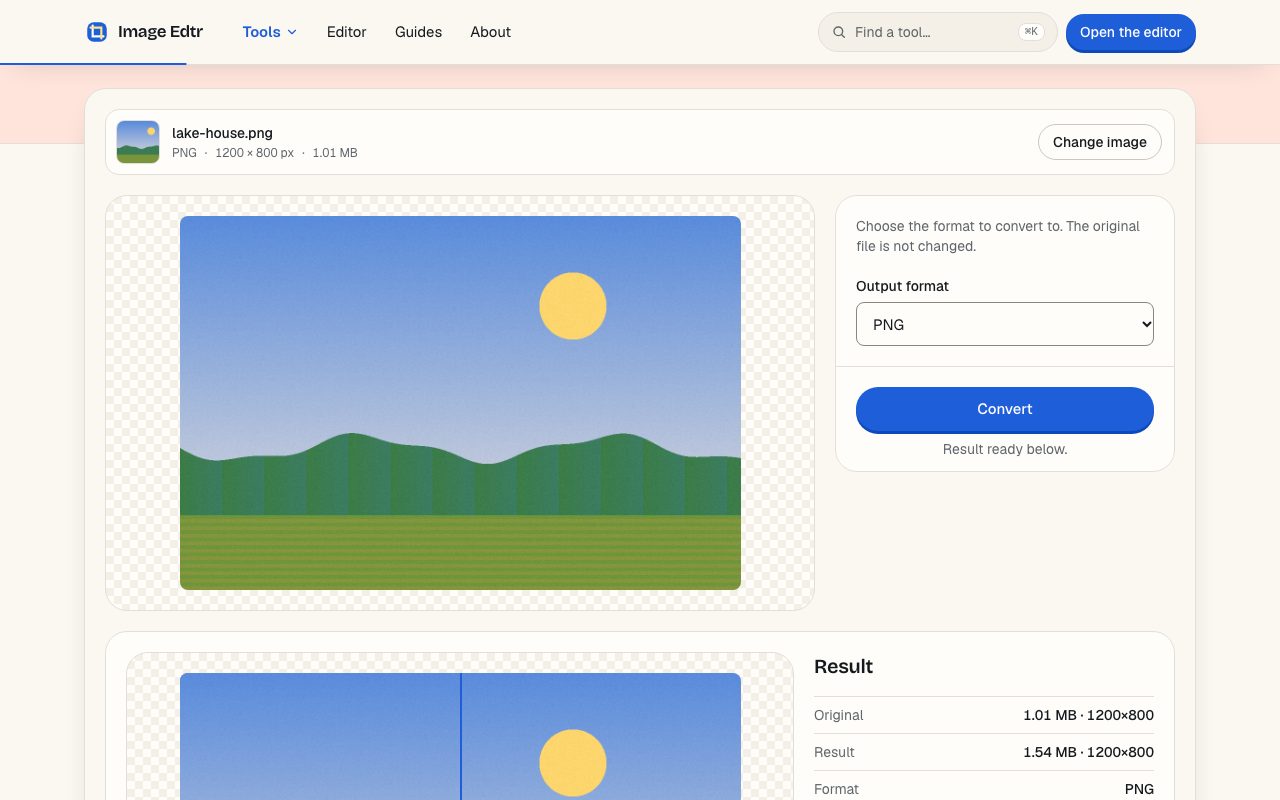
Image Edtr’s converter uses your browser’s own image encoders, so it only offers formats your browser can actually create. In current browsers that’s JPEG, PNG, and WebP. The file is processed on your device and never uploaded.
Choose an image
Select or drop a JPEG, PNG, WebP, GIF, BMP, or AVIF file. GIFs and animated WebPs are read as their first frame.
Pick the output format
Choose JPEG, PNG, or WebP from the Output format menu. If a format is missing, your browser can’t encode it.
Set quality and background
For JPEG and WebP, adjust the quality slider. For JPEG, pick the color that will fill any transparent areas; white is the default.
Convert and download
Select Convert, check the preview and the new file size, then download. The original file isn’t changed.
Common conversions and what to expect
Each conversion has a predictable effect on size and appearance. Knowing it in advance saves you from surprises after download.
| Conversion | Why you’d do it | What to watch for |
|---|---|---|
| Convert PNG to JPG | Smaller photos, or a site that only accepts JPEG | Transparent areas become the background color you choose; text and sharp edges may show artifacts |
| Convert JPG to WebP | Smaller files for a website | Existing JPEG artifacts are kept, not repaired; some older apps can’t open WebP |
| PNG to WebP | Smaller graphics that keep transparency | Lossy WebP can soften fine lines; use a high quality for text |
| JPG to PNG | An app requires PNG, or you need lossless edits from here on | The file usually gets larger, and lost JPEG detail doesn’t come back |
| GIF to WebP or PNG | A still image from a GIF | Only the first frame is kept |
| AVIF or HEIC to JPG | Opening a newer photo format in older software | Works only if your browser can decode the source; HEIC is effectively Safari-only |
What is lost when you convert an image?
Conversion re-encodes the pixels into a new file, so information stored alongside them doesn’t carry over. EXIF metadata, including camera details and GPS location, is dropped. Embedded color profiles aren’t preserved either; output is sRGB, so photos captured in a wide color space may look slightly less vivid on wide-gamut displays.
Bit depth is limited too. Browser canvases work with 8 bits per channel, so a 16-bit PNG or a high-bit-depth AVIF is reduced to 256 levels per channel when converted. For web and sharing that’s standard, but for archival or print masters, keep the original file alongside the converted copy.
Animation and extra frames are also lost, since animated files are read as their first frame. If you need to convert many files at once, the batch tool applies the same conversion to up to 50 images and can package the results as a ZIP.
Frequently asked questions
Is JPG the same as JPEG?
Yes. JPG and JPEG are two extensions for the same format, and any app that opens one opens the other. The three-letter .jpg extension comes from older systems that limited extensions to three characters. Image Edtr names JPEG downloads with the .jpg extension.
Does converting PNG to JPG reduce quality?
Yes, a little, because JPEG is lossy. At a high quality setting the difference is hard to see in photos, but text, sharp edges, and flat colors can show artifacts. Any transparency is replaced with a solid background color. Keep the PNG if the image is a screenshot or graphic.
Should I convert all my website images to WebP?
For most sites it’s a good default, since WebP usually produces smaller files and current major browsers display it. Keep JPEG or PNG copies for places outside your site, such as email newsletters or downloads that people open in other apps, where WebP support is less certain.
Which image format supports a transparent background?
PNG, WebP, AVIF, and SVG all support smooth transparency with partially transparent pixels. GIF supports only fully transparent or fully opaque pixels, which gives jagged edges. JPEG doesn’t support transparency, so converting to JPEG fills transparent areas with a solid color.
Why can’t I convert to AVIF or HEIC?
Image Edtr uses your browser’s built-in encoders, and browsers don’t provide AVIF or HEIC encoding to web pages. You can still open AVIF and HEIC files where your browser can decode them, which for HEIC effectively means Safari, and convert them to JPEG, PNG, or WebP.
What is the best lossless image format?
PNG is the most compatible lossless format and opens everywhere. Lossless WebP is usually smaller for the same pixels and also supports transparency, but some older software can’t read it. For logos and simple artwork, SVG avoids pixels entirely and stays sharp at every size.
Can I convert an animated GIF to WebP and keep the animation?
Not with Image Edtr. Animated GIF and WebP files are read as their first frame, so the output is a still image. For a still preview or thumbnail of an animation, that’s exactly what you want; for the animation itself, use a dedicated animation or video tool.